 Pompom Jar
Pompom Jar and Home Assistant
Put your family's jars on a Home Assistant dashboard, or turn each jar into a sensor you can use in automations, like a celebration when a jar fills up. It all works from a Pompom Jar web board, so there's nothing to install.
1. Turn on a web board
- In Pompom Jar, open Settings › Web board and turn on Share a live web board.
- Turn on Show jar names if you'd like names on your dashboard and in your sensors (the examples below use names).
- Tap Copy. Your link looks like
https://pompomjar.com/pp/AbCdEfGhIj. The part after/pp/is your board ID; the examples below useYOUR_BOARD_ID.
The board is read-only: Home Assistant can show and use your pompom counts, but pompoms are added in the app (or with Siri, the widgets and Shortcuts).
2. Show the jars on a dashboard
Add a Webpage card and point it at your board with ?embed. You get the jars drawn just like the app's widgets: the real pompoms, the jar's colour, and a big count you can read from across the room. The drawing comes from pompomjar.com, so it gets better without you changing anything, and it refreshes every 30 seconds.
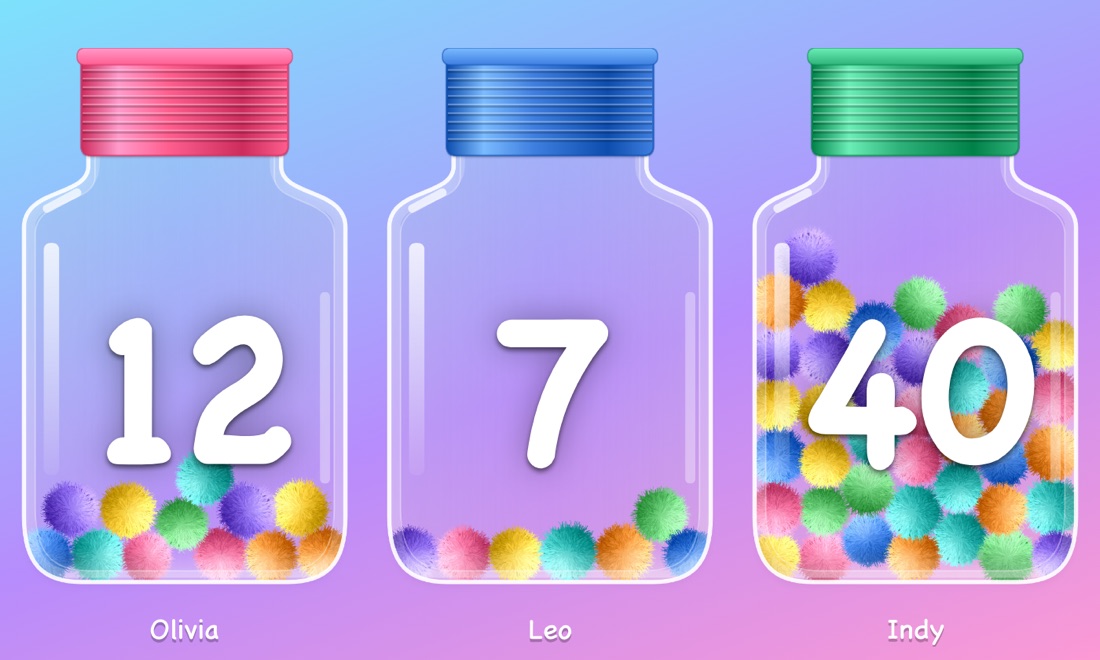
?embedtype: iframe
url: https://pompomjar.com/pp/YOUR_BOARD_ID?embed
aspect_ratio: 60%One card per child, with a see-through background so it sits on your dashboard's own theme:
type: horizontal-stack
cards:
  - type: iframe
    url: https://pompomjar.com/pp/YOUR_BOARD_ID?embed&jar=Olivia&bg=none
    aspect_ratio: 100%
  - type: iframe
    url: https://pompomjar.com/pp/YOUR_BOARD_ID?embed&jar=Leo&bg=none
aspect_ratio: 100%| Option | What it does |
|---|---|
embed | Just the jars, drawn like the widgets (no logo or QR code). Always include it on a dashboard. |
jar=Olivia | Show one jar, by name (needs Show jar names) or by position: jar=1 is the first jar. |
bg=none | See-through background instead of the Pompom Jar gradient. |
title=1 | Also show the jar set's name above the jars. |
3. Sensors for automations
To use the counts in automations, read the board's data with a RESTful sensor, then make a sensor per jar. Add this to configuration.yaml and restart Home Assistant:
rest:
  - resource: https://pompomjar.com/api/v1/boards/YOUR_BOARD_ID
    scan_interval: 60
    sensor:
      - name: "Pompom Jar"
        unique_id: pompom_jar_board
        value_template: "{{ value_json.updated }}"
        json_attributes:
          - jars

template:
  - sensor:
      - name: "Olivia pompoms"
        unique_id: pompom_jar_olivia
        unit_of_measurement: "pompoms"
        availability: >
          {{ (state_attr('sensor.pompom_jar', 'jars') or [])
             | selectattr('name', 'eq', 'Olivia') | list | count > 0 }}
        state: >
          {{ (state_attr('sensor.pompom_jar', 'jars')
             | selectattr('name', 'eq', 'Olivia') | first).count }}
        attributes:
          capacity: >
            {{ (state_attr('sensor.pompom_jar', 'jars')
               | selectattr('name', 'eq', 'Olivia') | first).capacity }}
          full: >
            {{ (state_attr('sensor.pompom_jar', 'jars')
               | selectattr('name', 'eq', 'Olivia') | first).full }}
      # …and the same for Leo, with 'Leo' in place of 'Olivia'
Names turned off? Match by position instead: replace selectattr('name', 'eq', 'Olivia') with selectattr('position', 'eq', 1) (the first jar). Positions follow the jar order in the app, so the sensors swap if you reorder your jars.
A gauge for each jar
type: horizontal-stack
cards:
  - type: gauge
    entity: sensor.olivia_pompoms
    name: Olivia
    min: 0
    max: 20   # your jar size
  - type: gauge
    entity: sensor.leo_pompoms
    name: Leo
    min: 0
    max: 20
Celebrate when a jar fills up
automation:
  - alias: "Olivia's pompom jar is full"
    triggers:
      - trigger: template
        value_template: "{{ state_attr('sensor.olivia_pompoms', 'full') }}"
    actions:
      - action: notify.notify
        data:
          message: "🎉 Olivia's pompom jar is full! Time to celebrate."
Swap the notification for anything you like: flash the lights in party colours, play a fanfare on a speaker, or show a message on a family display.
The board API
GET https://pompomjar.com/api/v1/boards/YOUR_BOARD_ID returns JSON. It's free to use from Home Assistant, Node-RED, scripts or your own pages (any website may fetch it). Data updates within seconds of a change in the app and is cached for 30 seconds, so polling every 60 seconds is plenty.
{
  "version": 1,
  "title": "The Smiths",
  "updated": "2026-10-25T09:41:00.000Z",
  "board_url": "https://pompomjar.com/pp/YOUR_BOARD_ID",
  "jars": [
    { "position": 1, "name": "Olivia", "count": 12, "capacity": 20,
      "percent": 60, "full": false, "color": "#ff5f8f" },
    { "position": 2, "name": "Leo", "count": 7, "capacity": 20,
      "percent": 35, "full": false, "color": "#3f7fe0" }
  ]
}| Field | Meaning |
|---|---|
title | The jar set's name, or null if Show jar names is off. |
updated | When the board last changed (UTC). |
jars[].position | 1, 2, 3… in the app's jar order. |
jars[].name | The jar's name, or null if names are off. |
jars[].count / capacity | Pompoms in the jar, and how many fill it. |
jars[].percent / full | How full it is (0–100), and whether it's full. |
jars[].color | The jar's colour, as a hex code. |
A 404 means the board is off, or its link was replaced with New link in the app. We'll only ever add fields to version 1, never rename or remove them.
Privacy
Anyone with your board link can see what it shows, so treat the link like a spare key: share it with the people (and dashboards) you choose. Turn off Show jar names to keep names off the web, use New link to retire an old link, or turn the board off to remove it. We count how often boards are read by dashboards, anonymously, to know the feature is useful; see the privacy policy.